
Princh Mobile Print Service
With our Princh MobilePrint Service™, you can use your personal computer or mobile device to print to the library’s printer from anywhere. Simply submit your documents for printing and come to the library to release and retrieve them.
Library cardholders receive up to $2.00 worth of free prints per day, either by printing from one of our Internet workstations, or by printing from your own personal device. Once your print job has been sent, you must print it out within 24 hours.

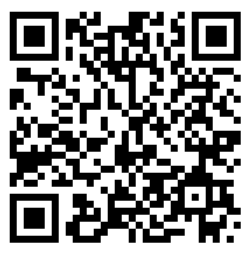
Princh mobile printing QR Code:
How to print without using the Princh App:
- Visit: https://print.princh.com/?pid=111284
- Select “Click here to select and upload a file ...”
- Browse your computer to find and select the file you wish to print.
- Click the gear under Settings to select your printing options, which include: paper format, color, number of copies, page range, and print on both sides.
- Click the green ACCEPT button.
- Check the box to Accept Terms and Conditions.
- Click the green CONTINUE button.
- Enter your e-mail address and click the green OK button.
- You can now click the green DONE button OR blue PRINT ANOTHER DOCUMENT button.
How to print with the Princh app:
- Visit your device’s ‘store’ for apps, install and launch the Princh App
- Open the app that contains your document/image/file
- Tap the Share icon and select Print with Princh
- When instructed to do so, switch to the Princh app
- At the Select printer screen, either:
- Enter ID# 111284 OR
- Scan the QR Code at the Print Release Station
- Adjust settings, which include: number of copies, page range, print on both sides, and color
- Tap Print
- Check the box to Accept the Terms and Conditions
- Tap Continue
- Enter your email address
- Tap Submit Print Job
- Your document/image/file has been submitted and is ready for release
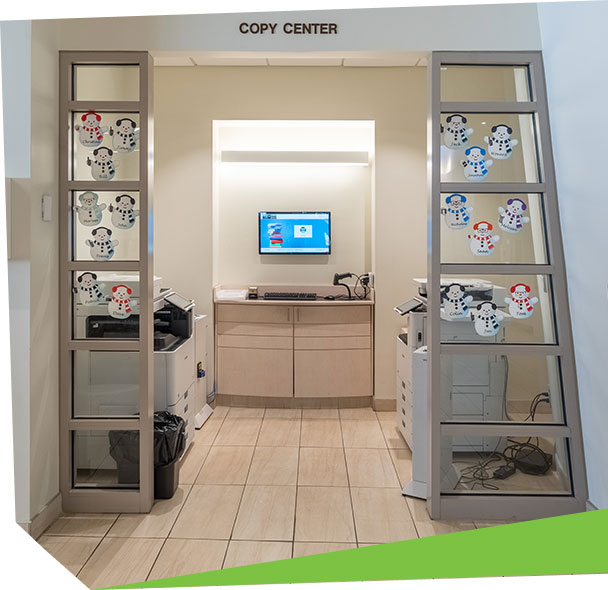
- At the Library, go to the Copy Center and use the Print Release Station to release your print job from the printer


